Monday, 9 June 2014
Day 48 [Research: "Why is my computer slow?" - Day 10]
When getting an external HDD for backup, you don't need to remove the software that came with it. If you needed to make more room you can always shrink the existing partition. This however can only be done with Windows Vista or later. The steps you will have to follow to accomplish this is by right clicking 'Computer' and select 'Manage'. You will then see 'User Account Control' window and then the 'Computer Management' window will appear and that's when you'll have to click 'Disk Management' option on the left-hand side. After all that, search for your external HDD on the bottom section of the main window and all that's left is right click on it and select 'Shrink Volume' to whatever extent you want. I'm on the 'Fast Fixes' portion of the section now and the main topic is 'How Can I Tell If My Hard Disk Is Failing?'. Under the 'Prevent and Cure Errors' part, it states that power failures, forced shutdowns and other problem can cause disk problems. Problems also include programs freezing when files are being opened and Windows crashes. Another indication that it's not going well is if the 'Checking file system on drive C:' message pops up frequently before Windows starts up. In order to help fix these problems you will need to download the DiskCheckup tool that's free. Another category in this section is 'Check Your Cables and Activity Light'. When the drive's activity light is constantly on even when there's no activity don't worry. The reason for this is most likely Window's indexing service or an anti-virus program is scanning the disk and these are done when the computer is idle and it may take quite a bit of time to be completed. When Window is short on memory however, it will use the hard disk as a temporary storage and this will strain the hark disk. Adding more memory can dramatically reduce the wear and tear of the hard disk. Also before condemning the drive, it's best to check the internal cables(Sata data cable that's connected to the motherboard) to see if they're functioning well and if not it's best to replace them.

Thursday, 5 June 2014
Day 47 [Research: "Why is my computer slow?" - Day 9]
Further in the Hardware Section of the pdf file, there was a person who had difficulty figuring out which side of his headphone is left and right so he can speak comfortably on Skype with his buddies. The solution to this was pretty straightforward since you don't have to download a program to solve this. All you need to do is to right click the speaker icon in the notification bar located on the bottom right corner and choose Playback Devices. After that click on the Playback tab and click the Configure option to open up the Speaker setup. From there on you can click the Test option to have Windows play left and right sequence audio to confirm which side is which. There was a question that asked if external hard disks reliable and the answer would be yes. It is much faster and convenient than using multiple DVD disks. However rare it may be, they do fair. There are many reasons for it and the main one is solely just irresponsible care for it. There was a person who recently bought a Sony Vaio Tap PC with Windows 8 as it's OS, however he was not able to access the Bios. He did manage to access the UEFI and that's where the problem lies. He mistakenly changed a setting and disabled UEFI in hopes that the Bios would appear but now when he puts power on his PC it displays the message 'Operating System could not be found'. Luckily for the guy, his PC has a built in Rescue Mode. For him to recover his PC he has to first have his PC off, press and hold down the Assist bottom on the back of the PC and after a couple seconds there should be a Vaio logo appearing in the Rescue Mode Screen. From here on just follow it's instruction and the problem is solved. When upgrading your PC, it's best to know ahead of time if your equipment such as your printer is compatible with it. If not hope that the driver for your equipment has updated so it can be stable and usable.
Friday, 30 May 2014
Day 46 [Research: "Why is my computer slow?" - Day 8]
There was a question asking if it was a good idea to ignore Windows Update in order to save their 3G data. The answer is maybe depending if you have a reliable anti-virus software but it's only good in short terms, so it's best to have Windows updated to keep it safe from any harm that may come to the computer. If you're having AutoPlay problems there are many solution to it. If you insert a CD or USB device and nothing happens, you would have to go to computers and check the drives and disk if they're there and if not then you will have to run the AutoPlay Repair Wizard to try and fix the problem. After running that, reinsert the CD or USB device and it should pop up now. What you can also do with AutoPlay is set it to automatic import photos and videos from external devices such as a camera, phone, or tablet whenever it's connected to the PC. You can also change each devices setting individually to have it in your preference. I'm at the end of the first section of Windows and will be heading towards Section 3 which focuses on hardware. What I've learned in the hardware section is the transfer of data from a HDD towards a SSD. The question the person asked was if it was possible to transfer my files to a SSD but in return will Microsoft demand a new product key. The answer that was given varies. In most case the process would be done without a problem and to make sure of it you would have to start up the menu and right click 'Computer' and choose properties. Scroll down and there will be a section stating whether or not Windows is activated or not. There are at times however where Windows do require an re-activation but it won't require a new key. I also learned that when Windows continuously keep popping up messages such as 'You need to format this drive,' and missing files, the probability of your hard drive failing is high. It's best to back up your files and download Seagate's SeaTools. Once installed check off your hard drive and open Basic Tests to begin working through tests and hope it's fine and that you are able to recover corrupted files.
Monday, 26 May 2014
Day 45 [Research: "Why is my computer slow?" - Day 7]
After going through 26 pages of the "Why is my Computer so slow?" pdf, I have learned that there is a folder that Windows Explorer(Microsoft) wants to keep hidden from people. The reason why it's kept hidden is because the folder,(which is called 'Installer') contains vital data that could lead problems to the software or Windows. Microsoft did have a tool to reclaim space that's taken by the folder but even with the tool it still caused problems so they withdrew it. It's best to avoid a failed installation/uninstallation as it will leave unnecessary files in the installer folder and you can't do anything inside that folder unless you want to deal with problems. If you have unwanted error files and want it removed then you would have to use Disk Cleanup. In order for you to remove then you will have to have be on administrator mode to actually remove anything. All you have to do from there on is find the Disk Cleanup shortcut, right-click it, run as administrator, and run the cleanup process and the files should be gone.
Friday, 23 May 2014
Day 44 [Research: "Why is my computer slow?" - Day 6]
When having problems with your keyboard such as missing keys, malfunctioning keys, or it's missing some keys due to the keyboard size, there is a solution for that. Keyboard mapping is what is needed and a good program to get for this problem is SharpKeys. It will pop up a window that will show you what keys you want to use in substitute for the missing/malfunctioning key. After doing that, restart the computer for it to register the change. When upgrading Windows, make sure that the motherboard of yours support UEFI Bios. The likely hood of not having it means that your motherboard is out of date and that you will need a new one to be able to upgrade your operating system.
Thursday, 22 May 2014
Day 43 [Research: "Why is my computer slow?" - Day 5]
The question that was asked in the pdf was, 'Is it safe to delete Windows Update files?', and the answer is yes. As a person who likes to keep their PC as clean as possible, I would most likely do this. To be able to do this safely though, you should not have any problems with up to date update. If there is no problem then you go and delete any files in the subfolder stored in 'C:\Windows\SoftwareDistribution\Download,' however do not delete the folder itself. When upgrading Windows, you can have all your previous data if you choose not to format the HDD. It should most likely be found in a folder called windows.old. If you choose to however to start out fresh with nothing but the installation of the OS, then just format it or delete the 'windows.old' folder. Also, if you want to customize your computer by having other than an image of a folder for a folder you can do so. By doing this, you simply right click on the folder and go on to the properties of it. After doing so you will see an option that will allow you to change the icon of the folder.
Wednesday, 21 May 2014
Day 42 [Research: "Why is my computer slow?" - Day 4]
If, for whatever reason you need to revert your computer back to several day/month/year, you would need to use System Restore. In order to do this, you will need to start up System Restore and at this point there will be Restore Points that your computer has made to keep your file secured at a certain point. The likely hood of having files kept a year back is unlikely, due to the computer continually making save points as time progress and that there is a limited amount of save points. I also learned that you're able to view Windows 8 apps side by side. To do this, you drag the app to the side of the screen. If it's not working then the problem is most likely due to not meeting the minimum resolution which is 1366x768.
Tuesday, 20 May 2014
Day 41 [Research: "Why is my computer slow?" - Day 3]
Advancing through the pdf, I've learned solutions to the frozen "Shutting down" window. There are many causes to this so having to go through a process of elimination is going to take a lot of time. However, the likely cause of this problem is due to a program or service related to that program. To solve this, run the program "Run" and type msconfig and press enter. Click on the service tab and check the 'Hide all Microsoft services' after doing so, click on the 'Disable all' option and re-enable the first service in the list. After doing so take note and restart the computer and repeat the process until the problem risen again. You now have a big idea on which one is causing the problem and all that's left to do is have that program/service disabled at all time. Another thing that I've learned from reading the pdf is that you're able to transplant a used HDD into a new PC. It's a simple process of having the PC turned off, open up the inside and removing the HDD and inserting it into an empty drive bay in the new PC. If you want to import your files from your HDD into a laptop, you would need an external USB enclosure to transport it via USB.
Thursday, 15 May 2014
Day 40 [Research: "Why is my computer slow?" - Day 2]
Continuing through the pdf file, I've learned that if a program like Angry Bird is not working and you've tried everything such as restarting the computer, uninstalling and re-installing the program and still not work, it's due to a corrupted file. When uninstalling a program, you don't permanently remove everything. What's left is the folder that has files that support the program but not the program itself so when re-installing, you're not changing anything. To solve the problem you have to uninstall the program and remove the folder that's left in the hard drive and re-installing it and hope there's no corrupted data. I also come across some information about SSD(Solid State Disk). Defragmenting an SSD is not recommended by many people due to one thing, it reduces the lifetime of the hardware. Writing on the SSD wears it down and defragging it will mean there will be a lot of writing.
Day 39 [Research: "Why is my computer slow?" - Day 1]
Starting with "Why is my computer slow?" pdf, I'll be reading section 1 which covers Windows and how you can optimize it to make it run faster. I learned that when misplacing a folder/document/file and unable to find it again, you can easily relocate it. What you need is to be able to remember part of the file's name and launch Window's explorer and search for it in the search bar. If you want to find out the where the rest of the files/documents that's in the folder all you have to do is right click on the file, click on properties and select the general tab and you'll see the file path that it's being stored.
Tuesday, 13 May 2014
Day 38 [Research: "Why is my computer slow?"]
Finishing up on ACS-PCXXX-05, a problem has risen where it was not allowing me to install student. Had to reopen the program by browsing through the computer and finding the program again and reopen it. Turns out that it was already installed but I decided to uninstall it and re-install it just to make sure it works. Also, I decided to do my first research on "Why is my computer slow?" out of the 9 pdf files that was given.
Monday, 12 May 2014
Day 37
Continuing on with ACS-PCXXX-05, it has just about everything I need for the PC. All I need to do is install student onto it and I'm finished with the PC. Also, I have been assigned to read pdfs file that's in the IT12 folder handout folder. One is a guide to laptop repairs, maximizing the specs of a computer, and an explanation of why a PC would be slow.
Wednesday, 30 April 2014
Day 36
Started on a new PC which will be named ACS-PCXXX-05. Thawed Deep Freeze to begin my work and all I can do today is use ninite to get the programs that I needed and changing the PC's name. Also, I learned of a program called ReadyBoost which utilizes a flash/usb drive to increase the memory of the computer. The maximum for 32bit machines are 4GB and for 64bit, it's 32GB per device for a total of 256 GB.
Day 35
Ran across an Windows Update Code Error: 80243004 and the problem was that the Windows Update was not up the entire time so installing the updates failed. In order to solve this problem I had to change the notification settings on the task bar to have Windows Update up at all times. Changed the PC's name to ACS-PCXXX-04 and all that's left is to install student onto it and it's finished.
Monday, 28 April 2014
Research: Deep Freeze [Day 34]
Deep Freeze is a software developed by Faronics and is available to Microsoft Windows, Mac OS X, and SUSE Linux OS, It's an application that allows the system administrator to protect the core operating system by restoring the computer back to it's original state each time the computer is restarted. Any work done on the computer while Deep Freeze is on is eliminated as soon as the computer is restarted. In order to get things changed, you have to have Deep Freeze "Thawed" first and reboot to have the effect in place.
Day 34
Finishing up PCXXX-03 with installing student and the latest windows update. Starting on a new PC which will be named ACS-PCXXX-04. With the PC I'm working at the moment, had to stop Deep Freeze before I get any work done or else it's all going to disappear when the PC is rebooted. First thing I did was get windows update started and went on ninite to retrieve the necessary programs needed for the PC.
Tuesday, 22 April 2014
Day 33
Restarted the computer in hopes to make it work however that was not the case. Turns out everything was restored to the way it was with no change made and so I had to redo everything. I was then told that the reason why the PC was not being updated was because of Deep Freeze. I am to do some research on it and continue my work with Deep Freeze disabled this time.
Wednesday, 16 April 2014
Day 32
Continuing work from yesterday, it turns out that all the work I've done was not processed for some odd reason so I had to redo everything. Solved the Windows Update Error: 80243004 by changing the setting on the notification bar. Had to have Windows Update up at all times or else there's going to be an error. Went to ninite again to redownload/install programs that the PC was missing and had to change the PC's name. That however didn't go the way I wanted as there was issues with the domain so I had to change to the work group, SD35, and restart the computer and change it back in attempts to making it work.
Research: Peripherals [Day 31/32]
Peripheral can be put into two category, external and internal and that there are three types of it which are input, output, and storage. Input is used to interact with the computer(mouse, keyboard, etc.). Output is what provides information from the computer(monitor, printer, etc.). Lastly is storage which stores data that's processed by the computer(flash drives, hard drives, etc.). Peripheral is usually referred to external because the devices are more commonly known such as the mouse, keyboard, or printer. What would be considered as internal peripherals would be the CD-ROM or the HDD but may not be recognized by laypeople.

Tuesday, 15 April 2014
Day 31
Started on a new PC which will be named ACS-PCXXX-03. It is mostly up to date with the programs that's desired but is behind in Windows Update. Went to ninite to get the rest of the programs that was needed and changed it's original name to the one above. Only problem that occurred was Windows Update had an Code Error: 80243004 and will have to wait until the next day to fix it.
Wednesday, 9 April 2014
Research: Expansion Cards [Day 30]
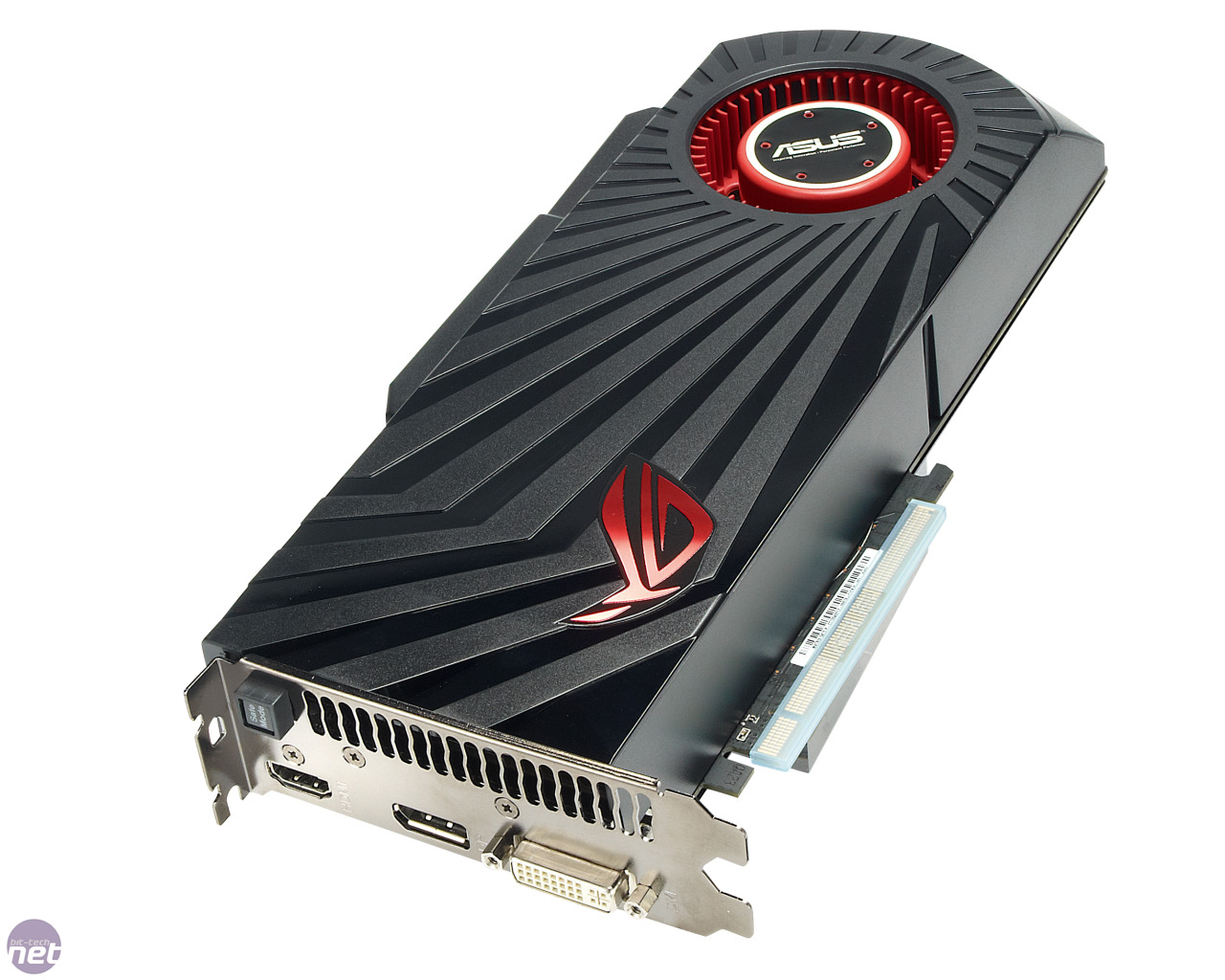
Expansion cards are PCBs that can be added to the motherboard to improve/upgrade it. As the name implies, the function of the expansion card is to add the motherboard with abilities that was not present to begin with. For example, a graphic card can be added to the motherboard to help run programs that the original GPU could not handle. There are also types that provide a sound card, video capture card, network card and etc.

Tuesday, 8 April 2014
Research: Chipset [Day 29]


Monday, 7 April 2014
Day 28
Continuing yesterday's work on Day's 20 PC with minor problems appearing. Installation of Microsoft Office with activation key problems. Issue was the two key I used was used one too much so activating it was not possible. Also had some Java issue when trying to get BCeSiS to work with me. Had to change the security settings from high to medium and installing an older version of Java. Still didn't work so I had to uninstall one of the Java version and an option came up asking me to download a different type of Java and that solved the problem. I am basically done with this PC and will be looking to find the next hardware that I'll be researching.
Friday, 4 April 2014
Day 27
Still working on day 20 PC with several problems that's risen. Everything was up to date with most programs that's needed installed however changing the PC's name failed. Attempted to change it three times but still failed so in the end, removed everything and start out fresh by re-installing Windows 7 Professional. In the process of reinstalling the operating system, it restarted so we had to remove the USB containing the OS when the installation is done before it can restart by itself. As of now, using Ninite to get all the necessary programs for the PC.
Research: Motherboard [Day 26/27]
The motherboard, known by many names such as mainboard or mobo, is the main printed circuit board(PCB) of PC and other expandable systems. What the motherboard is capable of is that it holds all the crucial electronic components of the system such as the CPU or RAM and provides connectors for peripherals(Ex: Mouse, Keyboard, etc.). Components like the external storage, video display and sound, and other peripheral devices may be attached to the mobo by plug-in cards or via cables. The motherboard utilizes an electrolytic capacitor to filter the DC power that's distributed around the board. It's lifetime can be approximately 15 years(for 45°C) depending on the temperature the capacitors are exposed to. Most mobo are designed to use BIOS(Basic Input/Output System), which is stored in the EEPROM chip or socketed in the motherboard to boot up the operating system(OS).

Wednesday, 2 April 2014
Research: PSU [Day 24/25]
Power Supply Unit(PSU) is one of the most important hardware for the PC as it is what makes everything run. What the PSU does is converts AC into low-voltage regulated DC power for the components of the computer to utilize. Most PC's PSU are in the form of a square metal box with a large bundle of wires on one side, an airvent and a C13/14 inlet connector. There is another type called Modular. The modular PSU provides a detachable cable system which reduces the clutter and removes the risk of interfering with other components as well as better air flow for the case. The life span of a PSU depends on the quality of it. The better the quality, the longer it last and it helps with a larger or higher speed fan because overheating is the major cause of PSU failure. The MTBF(Lifespan measurement for PSU) value of 100,000 hours(approximately 11 years) is common with most units.


Monday, 31 March 2014
Research: HDD [Day 21/22/23]
Hard disk drives(HDD) is the hardware that stores all forms of data by using rapidly rotating disks coated with magnetic material.The HDD has 9 major component which are the platter, spindle, head, actuator arm, actuator axis, power connector, jumper block, IDE connector, and the actuator. Unlike RAM, the HDD is able to keep its data even when the power is cut from it. What makes the HDD and RAM alike however, is that it reads the data in a random-access manner. Data recorded by HDD is done by magnetizing a thin film of ferromagnetic material on to the disk. The data is then read by detecting the transitions in magnetization of the disk. Information is being processed as it rotates past the device called read-and-write heads that operates close over the magnetic surface which in turn detects and modifies the magnetization of the material under it immediately.


Tuesday, 11 March 2014
Day 20/21
Day 20: I was assigned to setup a computer for a teacher across the hallway. No problem occurred when hooking up the monitor and PC up in one of the staff's room except making room for the power outlet.
Day 21: Working on a new PC with everything mostly up to date. Had to research the CPU for that computer because it was a Intel Pentium 4 CPU that was running a 64-bit. Installing all the necessary programs needed for a teacher and getting updates for Windows and getting started on researching on hard drives.
Day 21: Working on a new PC with everything mostly up to date. Had to research the CPU for that computer because it was a Intel Pentium 4 CPU that was running a 64-bit. Installing all the necessary programs needed for a teacher and getting updates for Windows and getting started on researching on hard drives.
Friday, 7 March 2014
Research: CPU [Day 17/18/19]
CPU, which is short for central processing unit, is basically the brain of the computer. It's the hardware within the computer that carries out instructions of computer programs. There are two main components of the CPU which are the arithmetic logic unit(ALU) and the control unit(CU). ALU performs arithmetic and logical operations while the CU takes in the instruction from memory and decodes and execute them, calling on the ALU if needed. A computer is capable of holding more than one CPU and that some integrated circuits(IC) can have multiple CPUs on a single chip which are called multi-core processor. The integer size of the CPU varies and that it sets the hardware limit of the range of integer the software run by the CPU can utilize(Ex: 2^8 or 256 discrete numbers). There is a special storage area within the CPU called register. Before data can be processed, they all must be represented in a register. The number of register that a CPU possesses determines the power and speed of the CPU(Ex: 32-bit CPU is one in which each register is 32-bits wide which means each CPU instruction can manipulate 32 bits of data). The last thing to the CPU is the clock speed/rate. The clock rate is the speed at which the microprocessor executes its instructions. There is a fixed number of cycles to the clock to be able to perform the instruction and with that being said, the faster the clock, the more instructions it can carry out per second.


Tuesday, 4 March 2014
Research: RAM [Day 16]
Random-access memory, otherwise known as RAM, is the memory of the computer used to store data and be accessed directly in any order. Unlike other data storage media such as hard disks and DVD, they read and write data in a predetermined order. There are about 3 types of RAM which are dynamic RAM(DRAM), static RAM(SRAM), and phase-change memory(PRAM). DRAM is used in majority of computers and also has several types of it. There's single data rate(SDR) that's been used before 2002, and there's double data rate(DDR), DDR2, DDR3, where the larger the number, the faster it is to it's predecessor. Contents that are on RAM are the faster than any other type of information storage however the drawback of it is that it loses all of it when the PC is off.

Friday, 28 February 2014
Day 12/13/14/15
During those time periods I have been working on updating old PC by updating their operating system with a new and better one(Windows XP < Windows 7 Professional) and getting the PC the necessary updates and program that's needed for a teacher. Website such as www.ninite.com is a very useful site that helps cut time and gathers all the programs that many want such as iTunes, Java, Skype, Google Chrome, etc, into one place. Also, I've learned that certain website aren't able to run the updated Java so to be able to load it, I had to downgrade and download an older version for it to be compatible. In the process of almost finishing updating the school's PC, I had to learn how to link up the computer with the school's domain and finding the school's wireless printer and having it to be the default printer.
Right now I am to work on Mr. Omorean's PC and getting it compatible with the printer that he has provided with it.
Thursday, 20 February 2014
Research: DVI [Day 10/11]
DVI: Digital Visual Interface is a video source used to connect display devices(TV, monitor, etc.) similarly like the VGA. However, it transmit uncompressed digital video and can be configured to support multiply modes. There are three DVI connector that transmit certain signals depending on what the connector are. DVI-D(Digial only, DVI-A(Analog only), and DVI-I(integrated, combines digital and analog)and likewise it is divided into two types which are single link and dual link. Single link supports 1920 X 1200 resolution at 60 Hz while the dual link is capable of supporting 2560 X 1600 resolution at 60 Hz. DVI are compatible with VGA as you are able to use an adapter if the display device does not provide a VGA slot.


Tuesday, 18 February 2014
Day 9
While working on a PC, I have found out that its VGA port is broken. I had to use an adapter for the VGA and use the DVI port in order for my screen to have image.
Monday, 17 February 2014
Research: VGA [Day 8]
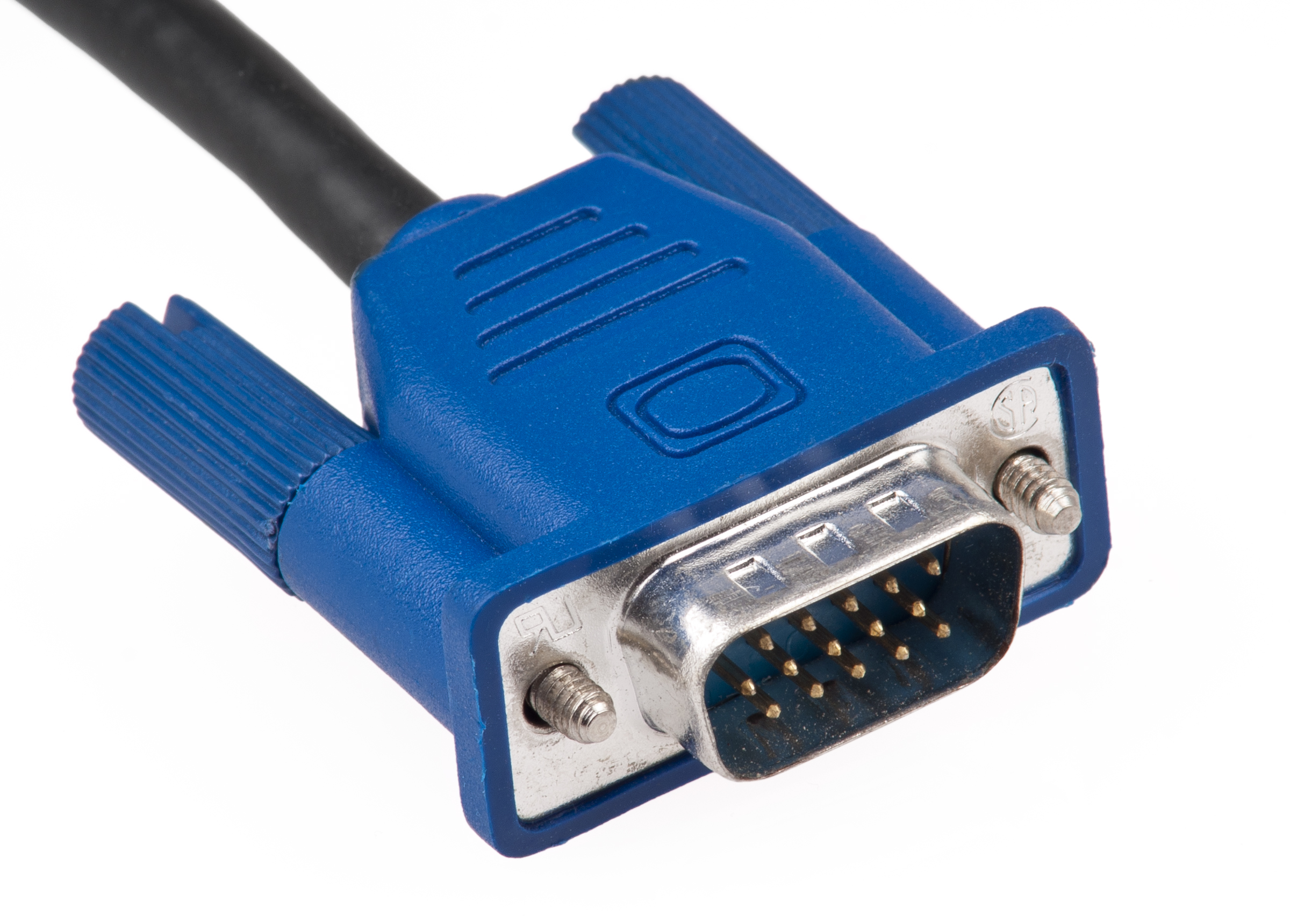
From what I've learned and understand about VGA is that it's vastly implemented on video cards/graphic cards, mainly used for computers, and the resolution can extend as far as 640x480.
Day 5/6/7
During those three days, I've almost finished my research on RAM, ran errands and eliminating PC that are no longer working. I am to study what VGA and DVI are due to my lack of understanding my errand that was given to me.
Tuesday, 11 February 2014
Day 4
Had to discard several non functioning laptop and PC. Working on my second PC and all that's needed to do today was updating it.
Friday, 7 February 2014
Day 3
While I'm asked to do several tasks by the teacher, I am to research hardware parts of computers. For the part that I'll be researching, the first one is going to be RAM which stands for Random Access Memory.
Day 1+2
The first 2 days of my independent work I was asked to overlook a PC that's malfunctioning. What I had to do was to restore the computer by removing the old content and re installing Windows 7 to it. Afterwards I had to install several programs that was needed for IT class such as Scratch, Sketchup, and Blockyard.
Tuesday, 4 February 2014
IT INDEPENDENT
For this semester, I have decided to go independent and learn how to fix computer for the career that I'm looking towards which will be a computer technician.
Subscribe to:
Posts (Atom)